With HexaQuill Premium, the AI assistant can talk to a model running entirely on your
computer through LM Studio or Ollama. Your prompts and manuscript
never leave your PC, there are no API keys, and there are no per-word cloud fees. This guide walks you
through the full setup.
Premium featureFully offlineNo API keyAbout 10 minutes
Before you start
A HexaQuill Premium account. Local AI is a Premium feature, and the provider option is locked on free accounts.
A local AI engine installed. We recommend LM Studio (has a friendly interface) or Ollama (lightweight, command line). Both are free.
A downloaded model. A 7–8B model such as Mistral 7B or Llama 3 8B runs well on most modern machines with 8 GB+ of RAM.
1
Install a local AI engine
Download and install LM Studio from lmstudio.ai or Ollama
from ollama.com. Both run OpenAI-compatible servers on your machine, which is exactly what
HexaQuill connects to.
Inside the engine, download a model to your computer — for example Mistral 7B Instruct or Llama 3 8B Instruct.
HexaQuill connects to your engine over a local web address, so the server has to be running first.
LM Studio: open the Local Server (developer) tab and click Start Server.
It serves at http://localhost:1234. Ollama: it runs automatically at http://localhost:11434 once installed;
load a model with ollama run mistral.
LM Studiohttp://localhost:1234/v1
Ollamahttp://localhost:11434/v1
Keep this server running while you use AI in HexaQuill.
3
Open HexaQuill Settings and choose AI Provider
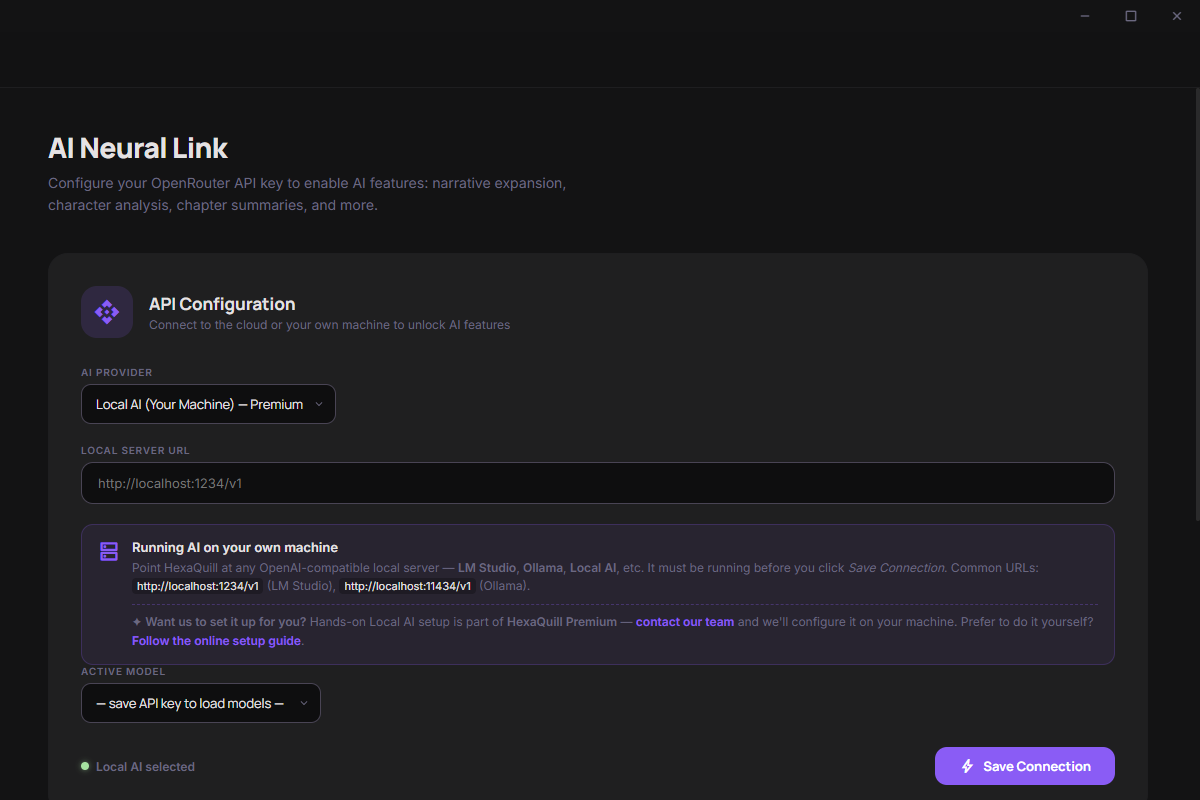
In HexaQuill, open Settings and find the AI Provider dropdown.
Switch it from OpenRouter (Cloud) to Local AI (Your Machine, Premium).
A new Local Server URL field appears just below the dropdown.
4
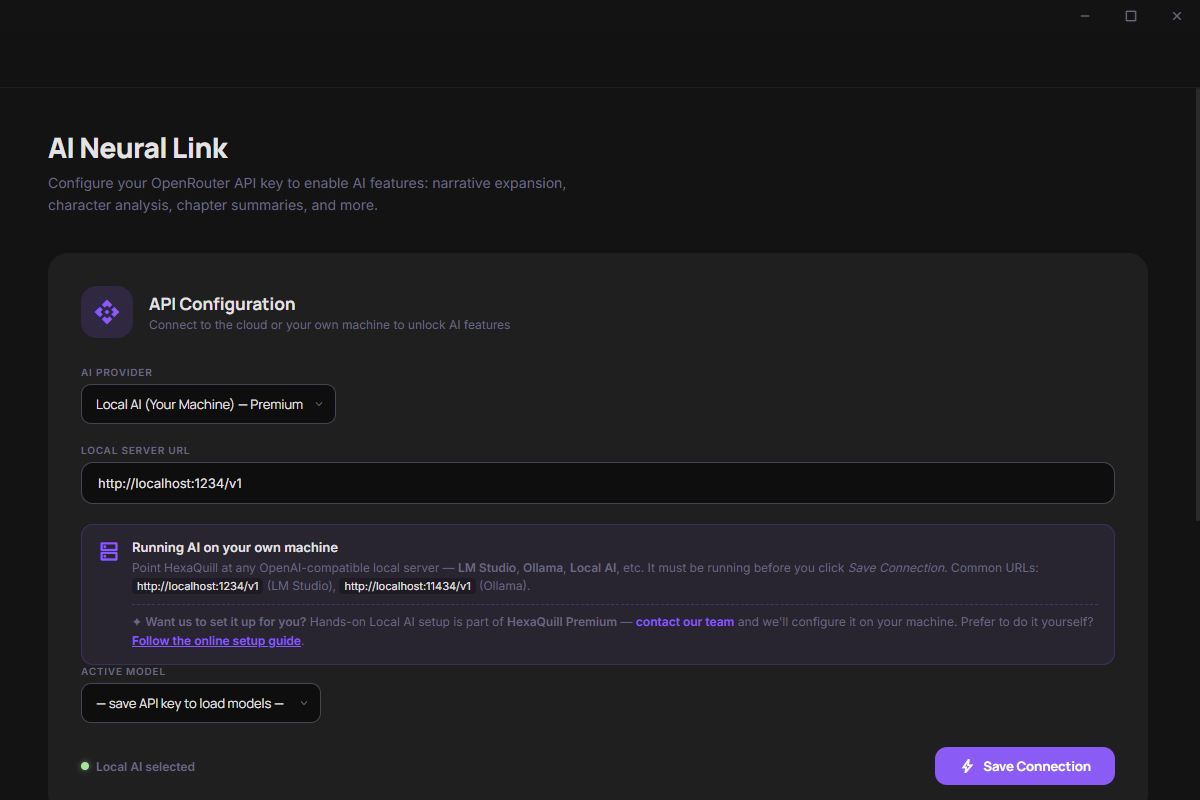
Enter your Local Server URL
Type the address of the server you started in Step 2, including the /v1 path:
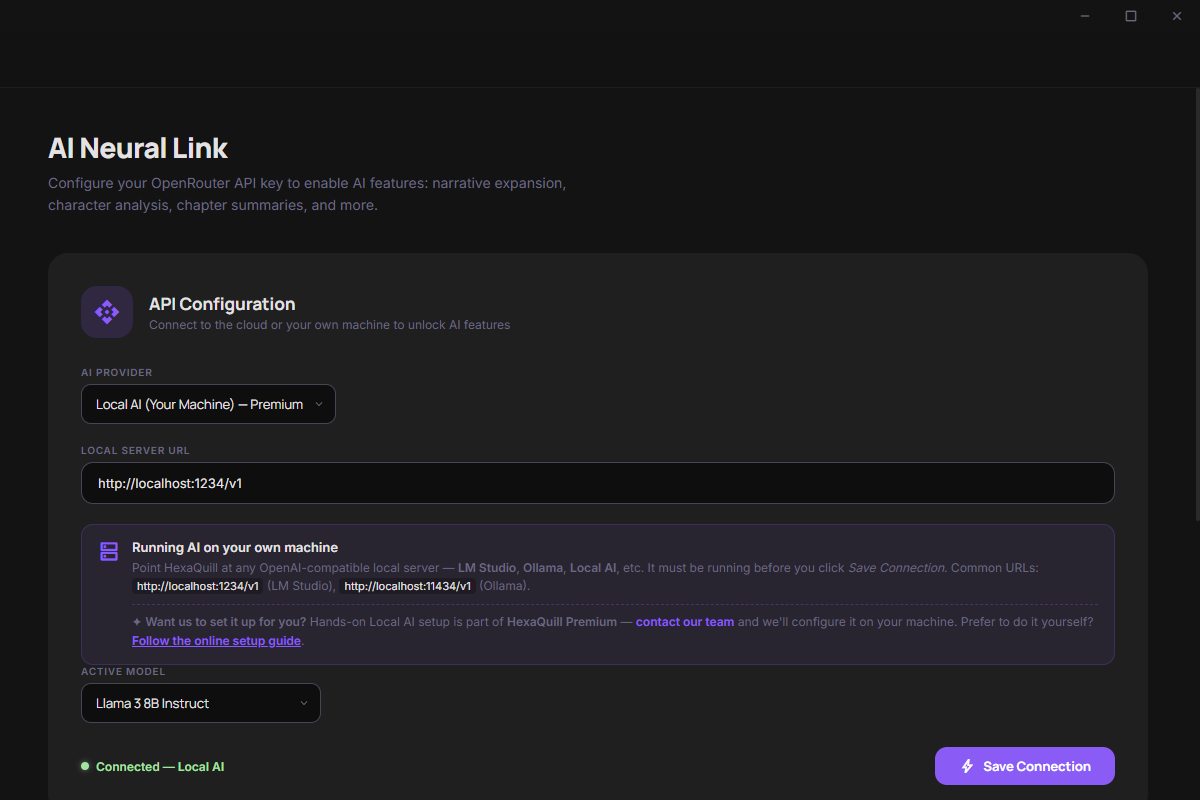
Make sure your local server is still running, then click Save Connection.
HexaQuill contacts the server, loads the models it finds, and the AI status turns green.
That's it. The AI assistant now runs entirely on your machine, completely offline.
The server must be running before you click Save Connection.
If HexaQuill can't reach your local AI, double-check that the LM Studio / Ollama server is started and that the URL and port match. Common URLs are http://localhost:1234/v1 (LM Studio) and http://localhost:11434/v1 (Ollama).
Common questions
Do I need an internet connection?
No. Once the model is downloaded and the local server is running, AI features work fully offline. Nothing is sent to the cloud.
Which is easier, LM Studio or Ollama?
LM Studio has a graphical interface for browsing, downloading, and serving models, so it's the gentler start. Ollama is lighter and command-line driven. Either works with HexaQuill.
Can the HexaQuill team set this up for me?
Yes. Hands-on Local AI setup is part of Premium. Reach out to support and we'll help configure it on your machine.